Enscape to Render
Transform Enscape Views into High-End Architectural Renders
Bring more realism to your Enscape workflow while preserving your composition, perspective, and design intent.
No learning curve
No GPU needed
No installation needed
Expand What's Possible with Enscape
Bridge the gap between design reviews and final presentations. Transform Enscape exports into photorealistic renders that help clients understand, trust, and approve your vision faster.

ENSCAPE MODEL

RENDER
From Enscape model to Photorealistic Render
From a Enscape screenshot to the presentation-ready render, discover how ArchiVinci brings architectural ideas to life.
Enscape residential exterior viewport → Photorealistic architectural exterior render

Enscape conceptual massing model → Fully detailed architectural visualization

Enscape modern interior lobby viewport → High-end interior visualization

Enscape landscape design viewport → Lush landscape visualization

Everything You Need to Get More from Enscape
Create realistic architectural renders from any image in seconds. Explore materials, lighting, and design concepts with confidence.
Take a standard Enscape screenshot or export and turn it into a more polished, photorealistic image ready for presentations, portfolios, or client reviews.
Upgrade Enscape Views into Final Renders
Test different façade finishes, flooring, furniture, colors, and material combinations without going back and rebuilding every option in your model.
Explore New Materials from the Same Enscape View
Turn the same Enscape view into daylight, sunset, night, warm interior lighting, or other moods without spending time adjusting lights and render settings.
Try Different Lighting and Atmospheres
Preserve the camera, proportions, and main architectural geometry of your Enscape view while pushing materials, lighting, and overall realism further.
Keep Your Enscape Geometry, Improve the Realism
The Enscape-to-Render Workflow with ArchiVinci
Follow a simple image to render workflow to transform your 3D models into photorealistic renders with AI.

Step 1
Export or Capture Your Enscape View
Save your Enscape view as an image or take a clear viewport screenshot, then upload it to the ArchiVinci module that aligns with the result you want to create.
Step 2
Define Your Render Needs
Select your preferred render engine, define the atmosphere you want to achieve, and describe the intended materials, lighting, and mood in your own words.
Step 3
Generate & Refine
Create up to 4 render variations, refine your favorite through editing or animation, use any output as the basis for your next iteration, and download the final render at maximum quality.
What Types of Revit Models or Scenes Can You Render?
A photo can be more than a reference. Use it as the foundation for redesigning, furnishing, sketching, visualizing, and developing architectural ideas.
Turn basic Enscape exports into more polished, realistic architectural renders.
Enscape View Upgrades

Add richer planting, outdoor details, and surrounding context to your Enscape exterior.
Landscape Upgrades

Try new façade, flooring, wall, and furniture materials from the same Enscape view.
Material Variations

Test new furniture, finishes, colors, and styles without rebuilding the Enscape scene.
Interior Restyling

Explore daylight, sunset, night, and different interior lighting without resetting your scene.
Lighting Variations
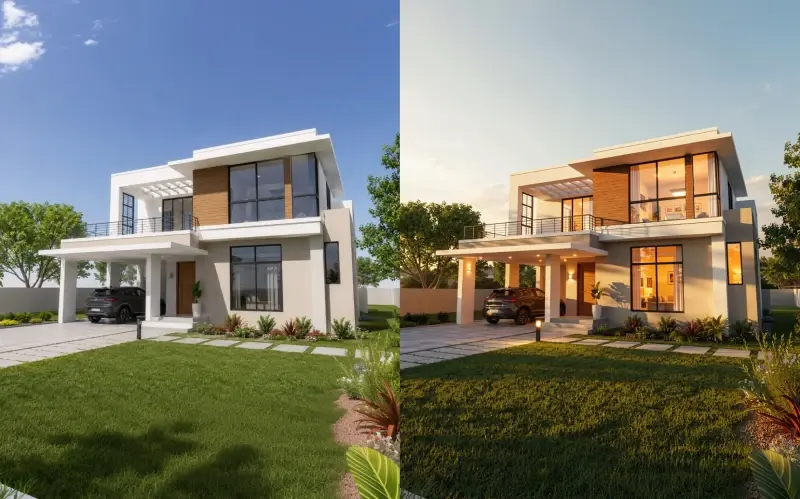
Create and compare different design directions while keeping the same camera and geometry.
Design Variations

Who Is Enscape to Render For?
Use Enscape for fast real-time previews, then refine selected views into more polished final renders.
Architects
Create quick visuals during design development and prepare client-ready images without slowing down the workflow.
Interior Designers
Visualize planting, hardscape, terrain, outdoor materials, and site layouts in real time, then turn Enscape views into polished landscape presentations.
Landscape Architects
Use Enscape to review building systems, spatial relationships, and design changes in 3D, and create clear visuals for coordination and presentations.
Engineers / BIM Professionals
Create Better Enscape Renders
Create photorealistic renders from your Enscape scenes in seconds with ArchiVinci.

Compatible with any CAD or 3D modeling software
in PNG / JPEG / WEBP formats

_2026_logo%201.avif)


Frequently Asked Questions
How does ArchiVinci transform Enscape views into photorealistic renders?
ArchiVinci uses advanced architectural intelligence to analyze the geometry, camera angle, composition, and visible surfaces in your Enscape screenshot or export. It then applies realistic lighting, detailed material textures, and environmental enhancements in seconds, turning a standard viewport image into a client-ready, photorealistic render.
Do I need to configure complex Enscape render settings or materials?
No. ArchiVinci removes the need for time-consuming material mapping, lighting adjustments, and manual render fine-tuning. You can export a basic Enscape viewport image and let ArchiVinci handle the heavy rendering work for you.
Can I control the materials, lighting, and style of the final render?
Yes. ArchiVinci preserves your original Enscape geometry while giving you control over the final look. You can choose the right ArchiVinci workflow, define the atmosphere you want, and use prompts to describe materials, lighting, weather, and style preferences.
Will ArchiVinci alter the proportions or geometry of my Enscape model?
No. ArchiVinci includes precision controls designed specifically for architecture. It is built to preserve the geometry, structural proportions, layout, and camera perspective of your original Enscape scene.
Can I use ArchiVinci with both interior and exterior Enscape models?
Yes. You can upload interior or exterior views captured from any 3D model visualized in Enscape. Use the AI Interior Design module to explore furniture, materials, lighting, and room styles, or the AI Exterior Design module to refine façades, landscaping, materials, and outdoor environments.
Do I need an expensive graphics card or hardware to use ArchiVinci?
Not at all. ArchiVinci runs entirely in the cloud, so you do not need a powerful GPU or a high-end workstation. You can generate high-resolution architectural renders from any laptop, tablet, or desktop browser without slowing down your device.
What is included in the 3 free renders trial?
The free trial includes 3 watermark-free renders with commercial usage rights and no credit card required. You can upload your Enscape views, explore different styles, generate up to 4 variations per render depending on the workflow, and test the speed and quality of ArchiVinci before choosing a paid plan.
What happens after my 3 free renders are used up?
Once your free renders are used, you can upgrade to a paid plan and continue generating with ArchiVinci. Flexible access options are available, including short-term and subscription-based plans. You can visit the Pricing page to choose the option that best fits your workflow.
Are the photorealistic renders cleared for commercial use?
Yes. All renders created with ArchiVinci, including free trial renders, can be used commercially. You can include them in client presentations, proposals, marketing materials, portfolio websites, and design competitions.