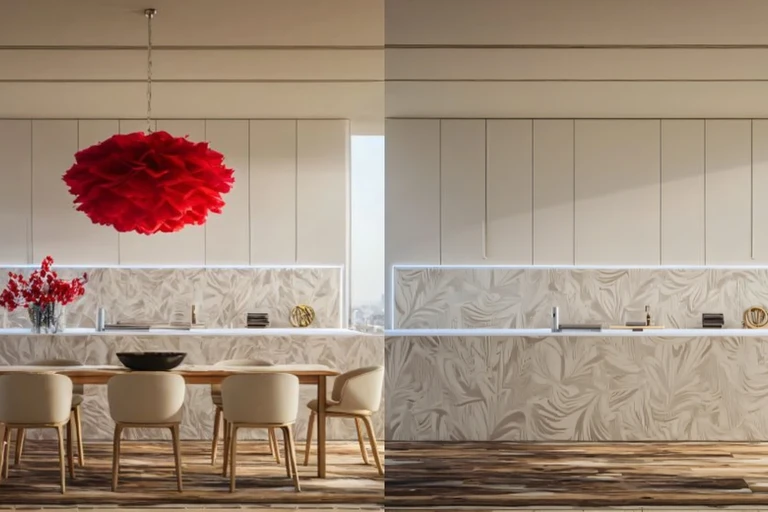
Updated on: 30 October 2026
To remove all furniture from a room photo, mark the furniture in an AI image editor (or use a photo editor such as Photoshop, or your phone's photo app for small objects), describe what should take its place, such as the empty floor and wall. The floor and walls behind the furniture were never in your photo, so every tool generates them to match the room; disclose the edit if the photo goes into a real estate listing.
This guide compares the four ways to get an empty room photo in one table, walks through the steps in ArchiVinci's Edit module with example requests, and covers what to check before you publish, what listing rules say, and how to plan and restage the empty room.

Why You Need an Empty Room Photo
An empty room photo shows a space's size, light and proportions without someone else's furniture in the way. It is useful for:
Real estate agents: showing a vacant property, or a neutral version of a furnished one, so buyers can picture their own furniture.
Interior designers and architects: starting a layout, colour or finish proposal from the room as it is built.
Homeowners planning a renovation: testing ideas on the real room before buying or moving anything.
Photographers and content creators: making before-and-after shots and clean backgrounds.
Furniture brands and shops: placing their products in a real, empty room for marketing visuals.
Four Ways to Get an Empty Room Photo
There are four ways to get an empty room photo. They differ in effort, in the skill they need and in how much furniture they can clear:
Method | Effort | Skill needed | Best for | Limits |
|---|---|---|---|---|
Empty the room and shoot again | High: moving, storage, a new shoot | Photography | A listing that must show the room as it will be sold | Slow and costly; impossible while someone lives there |
Photo editor (for example Photoshop) | Medium to high | Image editing | Full control over every edge | Large pieces take time; fills can repeat patterns or blur texture |
Phone photo app (Apple Clean Up, Google Magic Eraser) | Low | None | Small objects: a lamp, a cable, a vase | Made for distractions, not a room full of furniture; device requirements apply |
AI image edit (for example ArchiVinci's Edit module) | Low | None: mark and describe | Whole pieces or a whole room, in a browser | The floor and wall behind are generated to match the room; only the marked area changes; an account is required |
Physically Removing Furniture
The most reliable empty room photo is a real one: move the furniture out and shoot the room again. It shows exactly what a buyer or client will find, which makes it the right choice for a room that will be sold empty. It is also the slowest and most expensive method: it means movers or a lot of lifting, somewhere to store the furniture and a second photo shoot, and it is impossible while someone still lives in the room.
Photoshop and Other Photo Editors
A photo editor gives you full control over every edge. Photoshop, for example, has a Remove tool and Generative Fill for this kind of work, and other editors have similar clone and fill tools. Small objects on plain surfaces go quickly; a sofa in front of a patterned floor or a window takes far longer, because the editor has to fill a large area the photo never showed, and a careless fill leaves repeated patterns, blurred texture or light that does not match the room.
Phone Photo Apps: Apple Clean Up and Google Magic Eraser
Phones can remove objects in their own photo app. On Apple devices, Clean Up in the Photos app "can help remove distracting objects in a photo"; it is part of Apple Intelligence and, as of October 2026, needs a recent iPhone, iPad or Mac that supports it. Google Photos has Magic Eraser, introduced on the Pixel 6, which suggests distractions to remove or lets you circle or brush an object. Both are designed for distractions such as a lamp, a cable or a vase, not for clearing a whole room of furniture.
AI Furniture Removal
An AI image edit works on whole pieces of furniture. You mark the furniture or name it, say what should take its place, and an image model draws the empty floor and wall to match the rest of the room. It needs no editing skill and returns a result in seconds; what appears behind the furniture is generated to match the room, not recovered from the photo. ArchiVinci's furniture removal tool works this way, in your browser; the steps follow.
Remove Furniture with ArchiVinci's Edit Module, Step by Step
ArchiVinci has no separate furniture removal module: furniture is removed in the Edit module, the app's image editor (also called ArchiGPT). It runs in your browser and works on room photos and on renders from any 3D program. An account is required, and a new account starts with 3 free credits.
Step by Step Guide
Log in to ArchiVinci and open the Edit module.
Upload the room photo: one JPG, PNG or WebP file up to 5 MB.
Under the image, paint over the furniture with Select (a brush) or outline it with Select area (a lasso), then press Done. Mark every piece you want gone, with a small margin around it and its shadow.
Write your request in the prompt, which is required, for example: "remove the sofa, the rug and the lamps and show the empty floor and wall".
Press Generate. On a free account each image uses one credit; with a plan you can ask for up to 4 images in one run.
Compare the result with your photo and, if something is left, run it again as described below.
Example Requests That Clear the Furniture
Say what should go and what should be there instead; naming the floor and wall material helps the fill match the room. For example:
To clear everything you marked: "remove all the furniture, the rug and the decor and show the empty floor and walls"
To keep fixed elements: "remove the dining table and chairs and keep the pendant light, the windows and the kitchen counter"
To match the surfaces: "remove the sofa and show the oak floor and the white wall behind it"
For a leftover: "remove the lamp and the cable and continue the skirting board"
If Something Is Left: Mark It and Run Again
A first run can leave a lamp, the edge of a rug or the shadow of a chair. On the result, mark only what is left with Select, press Done, describe it and generate again; each result can become the next picture to edit, so a crowded room can be cleared piece by piece. If you marked too much, the Remove button under the image erases part of your selection: it changes the mark, not the photo.
What Happens to the Marked Area
ArchiVinci sends your photo, the marked area and your request to an image model, and only the marked area changes: the camera angle, the windows and the light outside the mark stay as they were. The floor, wall and skirting behind the furniture never appeared in your photo, so the model generates them to match their surroundings; that is why naming the materials helps. A request without a marked area works on the whole picture from your upload, so for a clean removal, mark first. For more on wording, see how to write a clear request.
Clear a room photo in your browser Upload the photo, mark the furniture with the brush or the lasso and say what should go: ArchiVinci generates the empty room in seconds, with the floor and walls drawn to match. A new account starts with 3 free credits. |
Check the Result Before You Publish It
Only the marked area changes, so a quick look at the cleared area at full size is enough before you publish:
Floor: planks, tiles and grout lines run in the same direction and at the same size where the furniture stood.
Walls and skirting: corners, skirting boards and wall colour continue without a break or a smudge.
Fixed elements: sockets, radiators, vents, doors and windows inside the marked area are where they are in the room.
Shadows and reflections: no shadow, reflection or rug edge of a removed piece is left behind.
Light: the cleared area has the same brightness and colour as the rest of the room.
If one area is wrong, mark only that area and run it again rather than starting over.
Can You Remove Furniture from Real Estate Listing Photos?
Removing furniture is a form of virtual staging, and MLS rules on it differ, so check the rules of the MLS or portal where the photo will appear. NorthstarMLS's proposed guidelines for virtual staging and AI-enhanced listing photos (10 July 2026) are one example: they allow virtual staging to add or remove personal property such as furniture and décor, prohibit changing or hiding permanent elements such as walls, floor coverings, doors, windows, ceilings and fireplaces, and ask that staged or AI-edited photos be disclosed and that each staged room has at least one unaltered "before" image.
In ArchiVinci only the marked area changes, so the walls, doors and windows outside it stay as they are: mark the furniture only, keep the original photo, and label the edited one. Using an ArchiVinci result in a listing, for a client or in marketing needs an active plan; plans are on the pricing page.
Plan the New Layout, Then Restage the Room
An empty room photo is usually the start of a new layout. To test where furniture fits before you restage the room, draw it in Floor Plan Maker: in a desktop browser you draw the walls, doors and windows, add dimension lines, see each room's area, place pieces from a library of 153 furniture items, with wall lengths and furniture dimensions shown as you draw, like in a CAD program, and check the layout in 3D and in a first-person walkthrough. Drawing, 3D and the walkthrough are free. For measurements that work in a living room, see these living room layout tips.
Then restage the photo. ArchiVinci's Furnish module lets you furnish an empty room from a photo: upload it, describe the furniture and style in a sentence, and it generates a furnished version that follows your photo.
Made in ArchiVinci's Furnish module on the default engine (ArchiVinci 4.0), with the request "A Scandinavian living room with a grey sofa, an oak coffee table and a wool rug". Left: the uploaded empty room. Right: the result.
To change a wall or floor finish instead of the furniture, mark the surface in the Edit module and use Apply texture, which offers 103 materials in 15 categories.
Conclusion: Which Method to Choose
If the room can be emptied and the photo is for a listing that must show it as it is, empty it and shoot again. For a lamp or a cable, your phone's photo app is enough. For precise control over every edge, use a photo editor such as Photoshop. To clear whole pieces or a whole room quickly, use an AI image edit: mark the furniture, say what should go and name the floor and wall materials, and disclose the edit wherever the photo is published.
Try it in ArchiVinci
Upload a photo of an empty room and describe the furniture and style in a sentence: ArchiVinci generates a furnished version that follows your photo. A new account starts with 3 free credits.
For an empty room: Virtual staging AI
Frequently Asked Questions
What is AI furniture removal?
AI furniture removal uses an image model to replace furniture in a photo with the floor, walls and light that would be behind it. In most tools you mark the furniture or name it in a request; some phone apps also suggest objects to remove. What appears behind the furniture is generated to match the room, not recovered from the photo.
Does removing furniture change the floor or walls?
Only inside the area you mark. In ArchiVinci the rest of the image stays as it is; the floor and wall behind the furniture never appeared in the photo, so they are generated to match the room. Name the floor and wall material in your request and mark only what should go.
Do I need editing skills to remove furniture from a photo?
Not for an AI edit or a phone app: you mark or circle what should go and, in an AI editor, describe what should replace it. Photoshop's tools take more skill and much more time for large pieces of furniture.
How long does it take to remove furniture from a photo?
In ArchiVinci's Edit module a result comes back in seconds, and a crowded room may need a second or third run for what is left. With a plan you can ask for up to 4 images in one run and keep the best one. Editing large pieces by hand takes much longer, and emptying the room for real means moving the furniture and shooting again.
Can I use AI furniture removal for real estate photos or design presentations?
Yes, for design presentations and, with care, for listings. Check the rules of the MLS or portal: NorthstarMLS's proposed guidelines, for example, ask for disclosure and forbid changing permanent features such as floors and walls. Keep the original photo, and note that commercial use of ArchiVinci results needs an active plan.
Can I remove furniture from a photo for free?
For small objects, your phone may already do it: Apple's Clean Up is part of the Photos app on devices that support Apple Intelligence, and Google Photos has Magic Eraser, whose availability depends on the device. ArchiVinci needs an account; a new account starts with 3 free credits, and each image uses one on the default engine, enough to try a removal. Commercial use of the results needs an active plan.